Your bio link is the most valuable piece of digital real estate you control. Every platform, Instagram, TikTok, YouTube, even your email signature, funnels attention toward that single URL. It’s the one place where a curious follower can become a subscriber, a customer, or a fan of something beyond the algorithm’s reach. Which makes it genuinely strange that most creators treat the analytics behind it as an afterthought.
The problem isn’t a shortage of tools. Link-in-bio platforms have multiplied for years. The problem is that the most important data, who clicked what, where they came from, what device they used, is consistently buried behind a monthly paywall. You get a visitor count on the free plan. Everything that would actually help you make a decision costs extra.
For creators building real businesses, that’s not a minor inconvenience. It’s a structural blind spot that compounds quietly over time.
Why a Visitor Count Tells You Almost Nothing
Picture a realistic scenario: you publish a post on the same day you launch a digital product, release a podcast episode, and promote an affiliate deal. Your bio link pulls in 4,000 visits over 48 hours. That number looks good in a screenshot. It tells you almost nothing useful.
Did visitors click your product page, or did they go straight to the podcast and skip the sale entirely? Was the affiliate link completely ignored? If you drove that traffic through three different platforms, which one actually converted? Without button-level click data, you cannot answer any of these questions with confidence. You’re left making your next content decision based on feel rather than evidence.
This is the core failure of surface-level analytics. A single vanity metric gives you the illusion of insight while hiding every data point that would actually change your behavior. Creators who fix this problem improve faster because every piece of content becomes a feedback loop. Creators who don’t keep running the same experiments, hoping something eventually sticks.
What Paywalled Analytics Actually Cost You
The pricing model most link-in-bio platforms use is straightforward: get you in for free, then lock the useful features behind a subscription once you’re dependent on the tool. Entry-level paid tiers typically run between $18 and $36 per month. That might sound manageable in isolation, but creators rarely use just one platform. Stack a bio link subscription on top of an email tool, a scheduling app, and a course platform and you’re looking at several hundred dollars a month in software overhead before you’ve earned a dollar.
More importantly, the features being paywalled aren’t advanced enterprise capabilities. Knowing which button your audience clicked is not a sophisticated request. Seeing a geographic breakdown of your traffic is not a premium insight. These are basic operational data points that any creator making decisions about their business should have access to by default. When platforms treat them as upsells, they’re not offering a premium experience. They’re charging you to see information about your own audience that you already earned.
The Five Analytics That Actually Drive Decisions
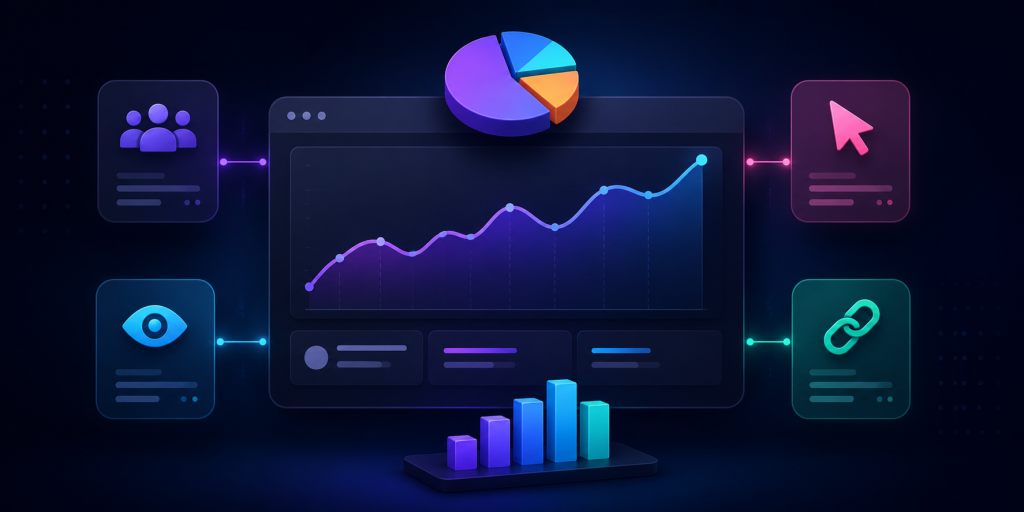
When evaluating any free Linktree alternative, most creators focus on design flexibility or the number of links allowed. Both are largely irrelevant if the tracking underneath is weak. These are the five data points that materially change how you run your creator business.
- Button-level click tracking. Aggregate page views are decorative. What you need is a per-link breakdown showing exactly which buttons are being clicked and which are being ignored. This tells you which offers resonate, which calls to action are failing, and where to focus your next promotion.
- Unique versus total clicks. Total click counts can be inflated by a small number of people clicking repeatedly. Unique click counts show you how many individual people engaged with a specific link, which is the number that actually reflects genuine audience interest.
- Traffic source attribution. There is a meaningful difference between a click that originated inside the Instagram app and one that came from a YouTube comment, a newsletter, or an external blog post. Source data tells you which platforms are earning their time investment and which ones are producing impressions without conversions.
- Geographic data. City and country level breakdowns affect pricing decisions, event planning, brand partnership pitches, and publish timing. If a significant portion of your audience is concentrated in a specific region, that information should be actively shaping your strategy.
- Device and browser reporting. If 80% of your clicks are coming from mobile in-app browsers, your external pages need to load instantly on a small screen. Device data lets you stop designing for how you browse and start designing for how your audience actually behaves.
The Technical Mistakes That Break Your Tracking
Choosing the wrong platform doesn’t just limit your visibility. It can actively corrupt the data you’re collecting elsewhere.
The first issue is redirect stripping. Some bio link platforms mask outbound URLs or strip tracking headers when they forward a user to your destination. The result is that your website analytics logs that visit as direct traffic rather than attributing it to social media. Your social channels look less effective than they are, your attribution model breaks, and any return on investment calculation you run becomes unreliable.
The second is link shortener chaining. Routing a bio tool redirect through an additional URL shortener creates two sequential redirects before a user reaches your page. Beyond the delay in load time, this frequently breaks UTM parameters and can trigger security warnings in mobile browsers, particularly on iOS. Always link directly to your final destination URL without intermediary shorteners.
How to Use Your Data Once You Have It
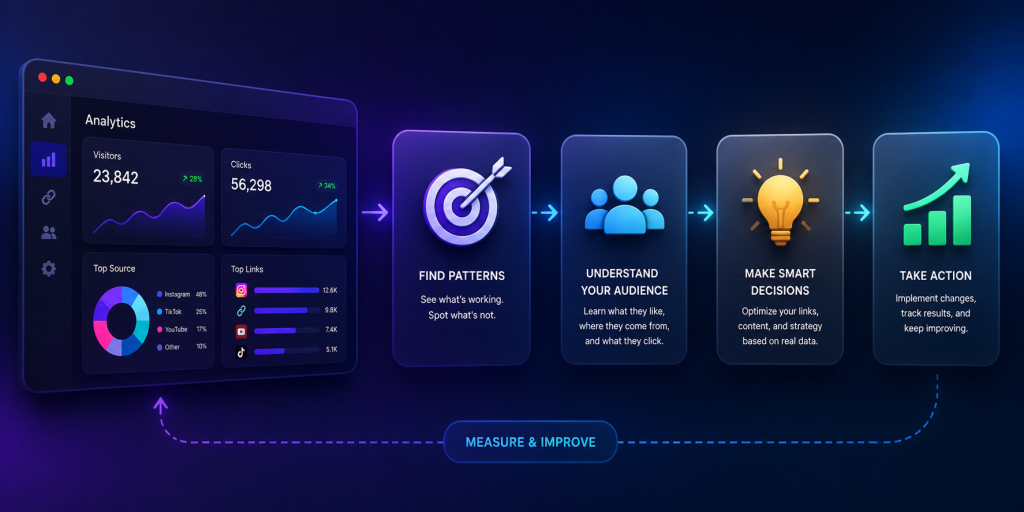
Access to analytics is only the first step. The creators who pull ahead are the ones who build a consistent habit around reviewing and acting on that data.
Every two weeks, pull your click data and remove any link that hasn’t generated meaningful engagement in the past 30 days. A focused page with four strong links consistently outperforms a crowded page with twelve because too many options produce decision paralysis. Your audience is more likely to click something when the choice is clear.
After each significant post or campaign, trace where the traffic spike originated before you lose the context. If a specific platform drove a disproportionate share of clicks, weight your next content batch accordingly. If a traffic source you invested heavily in produced nothing, that’s equally useful information.
Reorder your links based on performance data, not instinct. Most visitors won’t scroll far, so your highest-converting link belongs at the top. If your second link is consistently outperforming your first, swap them and monitor the change. Small structural adjustments validated by data produce compounding improvements over time.
What to Look for in a Free Platform
The market for link-in-bio tools has expanded considerably, which means the quality range is wide.
Data retention is the most underrated factor. Some platforms on free tiers delete or hide historical data after seven days. Others give you full access going back to the day you created your account. Comparing your current month against the same period last quarter is only possible if that data still exists.
UTM parameter integrity is non-negotiable if you run any external analytics. Confirm that the platform passes your tracking tags through cleanly on redirect rather than dropping them. Most won’t tell you they strip parameters so you have to test it yourself by clicking a tagged link and checking whether the parameters appear in your destination analytics.
Transparency around redirects is worth checking as well. Platforms that use masked redirects sometimes create issues with browser security warnings and can affect how link previews render when shared.
Why Creators Are Switching to itlink.to
Most creators who move to a platform with real analytics describe the same first week: the data is disorienting because it reveals how much guesswork was previously involved. Links you assumed were performing well turn out to have single-digit click rates. Traffic sources you deprioritized turn out to be driving the majority of your conversions. The picture that emerges rarely matches the assumptions you were working from.
That recalibration is valuable precisely because it’s uncomfortable. It means your next decisions are grounded in what your audience actually does rather than what you assumed they would do.
itlink.to gives you button-level click tracking, geographic breakdowns, traffic source attribution, and device reporting on its free plan without requiring a credit card. If you’re currently making content and business decisions without that visibility, setting up a page takes a few minutes and the difference in clarity is immediate.
Start tracking what your audience actually clicks. Build your free page at itlink.to.
References
- Hootsuite Blog — How the Instagram Algorithm Works An in-depth breakdown of Instagram’s ranking signals across Feed, Stories, Reels, and Explore, outlining how the platform prioritizes outbound links and user engagement.
- Statista — Mobile Internet Traffic as a Percentage of Global Web Traffic Statistical data tracking the global shift toward mobile-first browsing, highlighting why optimizing mobile bio landing pages is critical for conversions.
- Google Analytics Help — UTM Parameters and Campaign Tracking in GA4 Official technical documentation for configuring and managing campaign parameters in Google Analytics 4 to precisely trace mobile traffic sources.
- Content Marketing Institute — B2C Content Marketing Benchmarks, Budgets, and Trends Annual industry report evaluating consumer content strategies, distribution channel performance, and shifting audience engagement metrics.
- DataReportal — Digital Global Overview Report A comprehensive analysis of global internet, social media, and mobile adoption rates, offering macroscopic insights into consumer digital behavior.