When your iPhone app download link does not work, the problem can be frustrating because the same campaign link may work perfectly on Android, desktop, or even another iPhone. One user taps the link and reaches the App Store correctly. Another user gets stuck in an in-app browser, lands on the wrong page, sees a blank screen, or never reaches the install page at all.
This is a serious problem for app marketers, founders, creators, and product teams. A broken app download experience can waste ad spend, reduce installs, hurt QR code campaigns, and make users lose trust before they even try your app.
Most iPhone app download link problems are not random. They usually come from a few clear issues: the App Store URL is wrong, the redirect path is too complicated, Universal Links are taking over unexpectedly, the link behaves differently inside social media apps, or the campaign does not route iPhone, Android, and desktop users to different destinations.
This guide explains the most common causes and practical fixes so you can find where the link is breaking and make your download campaign work more reliably.
Why Your App Download Link Works on Android but Fails on iPhone
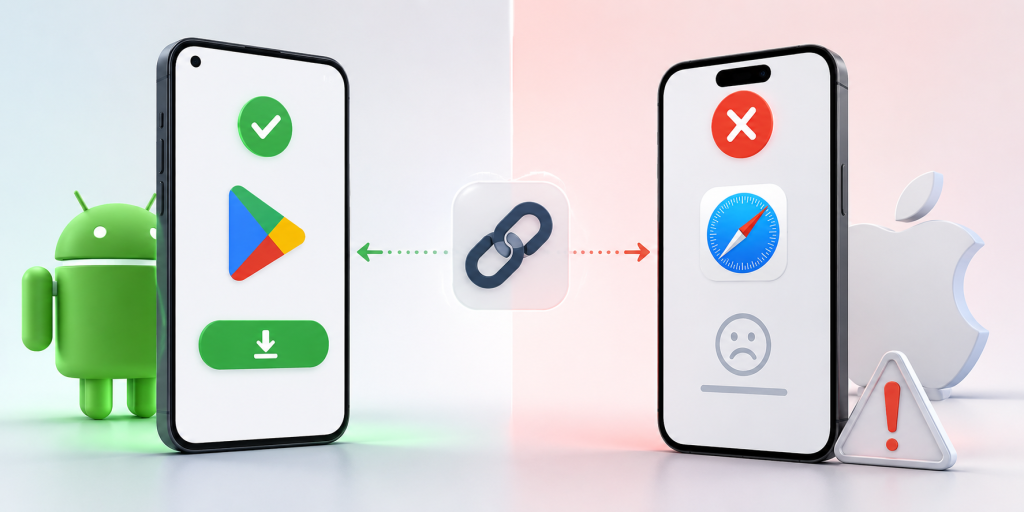
One of the most confusing situations is when your download link works on Android but fails on iPhone. This usually happens because Android and iOS do not handle app store links, redirects, and in-app browsers in exactly the same way.
For example, an Android user may tap your campaign link and go straight to Google Play. An iPhone user may tap the same link from Instagram, but instead of opening the App Store, the link stays inside Instagram’s browser or opens a blank redirect page. From the user’s point of view, the link is broken.
In many cases, the link itself is not fully broken. The problem happens somewhere between the click and the final destination. The issue might be a URL shortener adding an extra redirect, a tracking tool sending the user through several URLs, a Universal Link opening the website instead of the App Store, or an App Store link copied from the wrong place.
A simple way to think about the journey is this: the user taps or scans the link, the link redirects, the system detects the device, and the user reaches the App Store page. If any step fails, the whole experience feels broken.
How to Tell Whether the Problem Is the Link, the App Store, or iOS
Before changing your whole campaign setup, identify where the issue is actually happening. Many teams blame Apple or the App Store too early when the real problem is the link path.
Start by opening the final App Store URL directly on an iPhone in Safari. Do not test the short link first. Use the direct iOS App Store link that should open your app listing. If the direct App Store link fails, the problem is probably the destination URL, app availability, country setting, or App Store listing itself.
If the direct App Store link works, test the short link or campaign link in Safari. If it fails there, the problem is likely your redirect setup, tracking parameters, short link tool, or landing page logic.
If the campaign link works in Safari but fails inside Instagram, TikTok, Facebook, LinkedIn, email, SMS, or another app, the issue is likely related to in-app browser behavior. Some apps open links inside their own browser first, and that can affect redirects, Universal Links, and the handoff to the App Store.
This step-by-step testing saves time because it separates the final destination problem from the campaign link problem.
The First Thing to Check Before Blaming Apple
The first thing to check is the App Store URL format. A surprising number of iPhone download issues come from using the wrong kind of App Store link.
A direct App Store listing link is usually more reliable than a search result link, a preview link, or a link copied from an internal tool. If your URL sends users to a search page instead of the app listing, the result may vary depending on country, language, device, and App Store availability.
Another common mistake is copying a link with too many extra parameters. Tracking parameters are useful, but they can sometimes make troubleshooting harder. When testing, use the cleanest version of the App Store URL first. Confirm that it opens the correct app listing on a real iPhone.
Also check whether the app is available in the country where the user is testing. If your app is not available in that App Store region, the link may look broken even when the URL format is technically correct.
Do this before reviewing Universal Links, short links, QR codes, or campaign tools. If the final App Store URL is wrong, every link built on top of it will also fail.
Why Universal Link Not Working Issues Can Break Download Campaigns

Universal Links are useful when you want an iOS link to open your app if it is already installed. But they can create confusion when your main goal is to send new users to download the app.
A Universal Link may open the installed app, open a webpage, or fail to open the expected destination depending on the app configuration, domain association, user device, and previous user behavior. If the Apple App Site Association file is missing, invalid, blocked, or configured incorrectly, the Universal Link may not behave as expected.
The problem becomes more obvious in download campaigns. A new user who does not have the app installed needs to reach the App Store. But if the link is designed mainly as a Universal Link, the fallback experience may send that user to a website instead of the install page.
This is why “universal link not working” is often not just a developer issue. It can become a marketing issue when paid ads, QR codes, influencer links, and social media bios depend on that link to drive installs.
If your campaign goal is app downloads, make sure your link has a clear path for new iPhone users. Opening the app for existing users is useful, but new users still need a reliable App Store destination.
Real Examples of iPhone Download Links Breaking
In a social media bio campaign, a creator may place one short link in an Instagram profile. Android users tap the link and reach Google Play correctly, but iPhone users stay inside Instagram’s browser and never reach the App Store. The team may think the short link is broken, but the real issue may be how the redirect behaves inside the in-app browser.
In a QR code campaign, a restaurant, event booth, or retail store may print one QR code on physical materials. If that QR code points directly to Google Play, Android users can install the app, but iPhone users land on the wrong store. If the QR code points only to the App Store, Android users have the same problem in reverse.
In a paid ads campaign, a Facebook or TikTok ad may receive mixed traffic from iPhone, Android, and desktop users. If the ad uses only an iOS App Store link, iPhone users may be fine, but Android and desktop visitors will have a poor experience. If the ad uses only a homepage link, mobile users may need extra taps before they can install.
In an email campaign, the link may work on desktop but fail on mobile because the email client opens the link through a tracking redirect first. By the time the user reaches the final destination, the device detection or App Store handoff may not work as expected.
These examples show why testing only the final URL is not enough. You need to test the full user journey from the exact place where users will click.
Fix Redirect and Short Link Problems
Redirects are often necessary for tracking and analytics, but too many redirects can make an iPhone app download link unreliable. Every extra step increases the chance that Safari, an in-app browser, or a tracking system will interrupt the flow.
A weak redirect path may look like this: short link, tracking URL, campaign URL, landing page redirect, device detection redirect, then App Store. That may still work on desktop, but it can become slow or unpredictable on iPhone.
A better path is much simpler. The user taps one campaign link, the link detects the device, and iPhone users go directly to the App Store. Android users go to Google Play. Desktop users go to a useful landing page.
Do not stack multiple tools unless you really need to. If your short link tool, analytics tool, landing page builder, and app routing logic all add their own redirects, the user experience becomes harder to control.
When troubleshooting, remove unnecessary redirect steps and test again. If the link starts working after simplifying the path, the problem was not the App Store. It was the route to the App Store.
Make Sure Each Device Has the Right Destination
Many app download links fail because the campaign uses one destination for every visitor. That sounds simple, but it does not match how users actually behave.
A good app campaign needs different destinations:
- iPhone users should go to the Apple App Store.
- Android users should go to Google Play.
- Desktop users should go to a landing page with app information.
- QR code users should follow the same device-based routing.
- Unsupported devices should reach a fallback page instead of an error.
- Campaign clicks should still be tracked for analytics.
This matters because your audience is usually mixed. A QR code at an event may be scanned by iPhone and Android users. A social media bio may be opened from mobile and desktop. A paid ad may receive traffic from multiple devices in the same campaign.
This is where smart routing becomes useful. Instead of creating separate links for each device, you can use one link that sends each visitor to the correct destination. For example, itlink.to One Route helps you create a single campaign link that can send iPhone users to the App Store, Android users to Google Play, and desktop users to a landing page.
Test the Full Journey Before Launching
Testing should happen before your link appears in ads, social profiles, printed QR codes, packaging, event materials, or influencer posts. Once a broken link is published, you may lose installs before you notice the problem.
Test your direct App Store URL first. Then test your short link or campaign link on a real iPhone in Safari. After that, test the same link from the real channels where users will click it, such as Instagram, TikTok, Facebook, LinkedIn, email, SMS, and QR code scans.
Also test Android and desktop behavior. Android users should not be sent to the Apple App Store. Desktop users should not be left on a mobile-only store page with no explanation. They should land on a page that explains the app and gives them a clear next step.
After testing the destinations, check your analytics. Look at device data, browser data, locations, and click logs. If you see iPhone clicks but very few installs, review the redirect path and final App Store URL again.
Good testing does not need to be complicated. It just needs to match the real user journey.
How to Prevent This Problem in Future Campaigns
The best way to prevent iPhone app download link problems is to avoid building fragile campaign flows. A link should not depend on too many redirects, unclear fallbacks, or manual device instructions.
Create one clean campaign link for each major campaign. Define the iPhone destination, Android destination, desktop destination, and fallback destination before publishing. Then use that same link in your QR code, social bio, paid ads, email campaign, and printed materials.
This reduces copy-paste mistakes and makes performance easier to track. Instead of checking several different links, you only need to monitor one campaign link and its analytics.
It also makes your campaign easier to update. If your App Store URL changes or your landing page needs improvement, you can update the destination behind the link instead of replacing every QR code, ad URL, or social media bio link manually.
For app download campaigns, reliability is part of conversion optimization. The fewer steps users need to take, the more likely they are to reach the correct install page.
If your app download link is not working on iPhone, do not assume Apple is the problem. Most issues come from incorrect App Store URLs, Universal Link behavior, in-app browser limitations, unnecessary redirects, missing fallbacks, or campaigns that send every device to the same destination.
The fix is to simplify the route. iPhone users should reach the App Store quickly. Android users should reach Google Play. Desktop users should reach a helpful landing page. QR code and social media users should get the same reliable experience.
Before launching your next app campaign, test the full journey on real devices and real channels. If you want one link that automatically sends users to the right destination by device, create your One Route link with itlink.to here
References
- Apple Developer — Universal Links Documentation Official Apple documentation explaining how Universal Links work, common implementation requirements, and expected iOS behavior.
- Apple Developer — App Store Connect Documentation Official resource for managing App Store listings, app availability, and App Store distribution settings that can affect download links.
- Google Play Console Help — Share App Links Google’s official documentation covering app listing URLs, distribution, and store availability for Android users.
- itlink.to One Route Smart routing solution that sends iPhone users to the App Store, Android users to Google Play, and desktop visitors to a landing page using a single campaign link.