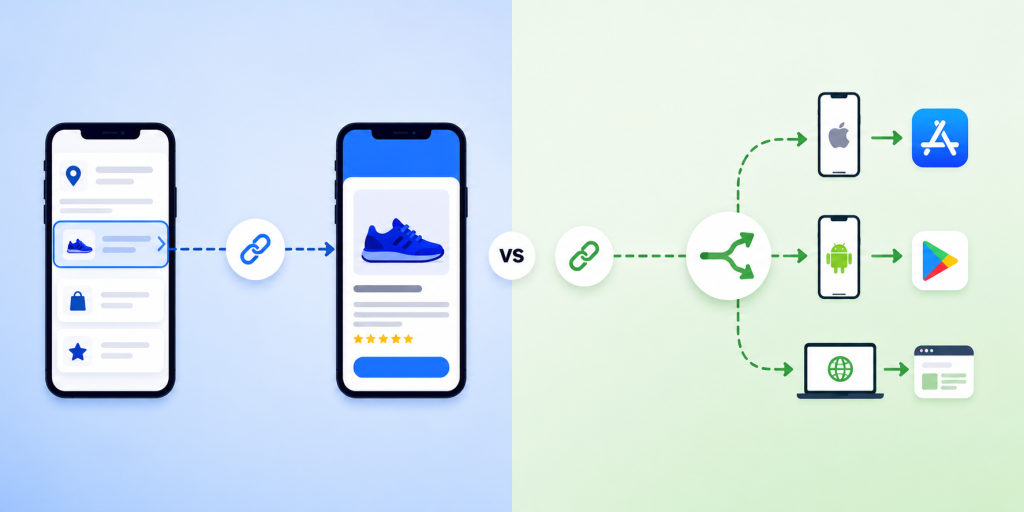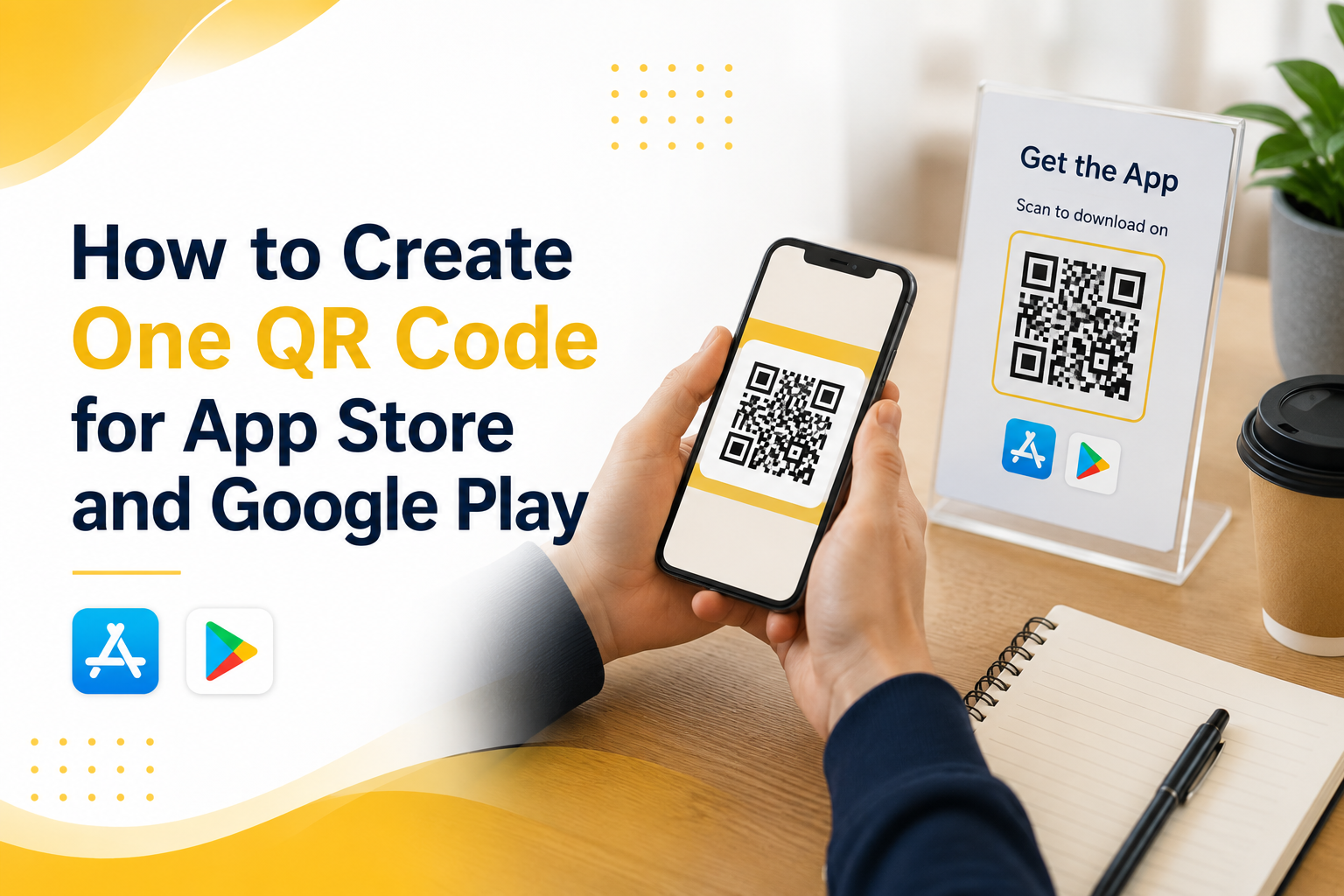
If you are promoting a mobile app, using one app QR code for both the App Store and Google Play is much cleaner than printing two separate QR codes. The problem is simple: iPhone users need one destination, Android users need another, and desktop users may need a landing page instead. A normal QR code cannot make that decision by itself. It only opens one link.
That is why many app campaigns fail before users even reach the download page. A QR code on a poster, product package, event booth, restaurant table, or social media graphic may look simple, but behind that code you need a link that understands the user’s device. When someone scans from an iPhone, they should go to the App Store. When someone scans from Android, they should go to Google Play. When someone opens it from a laptop, they should see a useful web page instead of a broken mobile store link.
This guide explains how to create one QR code for App Store and Google Play without confusing users, wasting printed materials, or sending people to the wrong place.
Why One QR Code Is Better Than Two Store QR Codes
Two QR codes may seem like the easiest solution at first. One says “Download on the App Store” and the other says “Get it on Google Play.” That works on a clean landing page, but it becomes messy in real-world marketing.
On a poster, flyer, booth banner, table tent, event screen, or product insert, users do not want to study two codes. They want to scan once and get the app. If they scan the wrong QR code, they may land on a store page that does not work for their device. That creates friction at the exact moment they were interested.
One QR code also makes your design cleaner. You have more space for your headline, app benefit, product image, or call to action. Instead of explaining which code to scan, you can simply say “Scan to download the app.”
The real advantage is control. When one QR code points to a smart routing link, you can update destinations later without reprinting the QR code. If your App Store URL changes, your Play Store URL changes, or you want desktop users to visit a campaign landing page, you can update the routing behind the link.
The Problem With a Normal QR Code
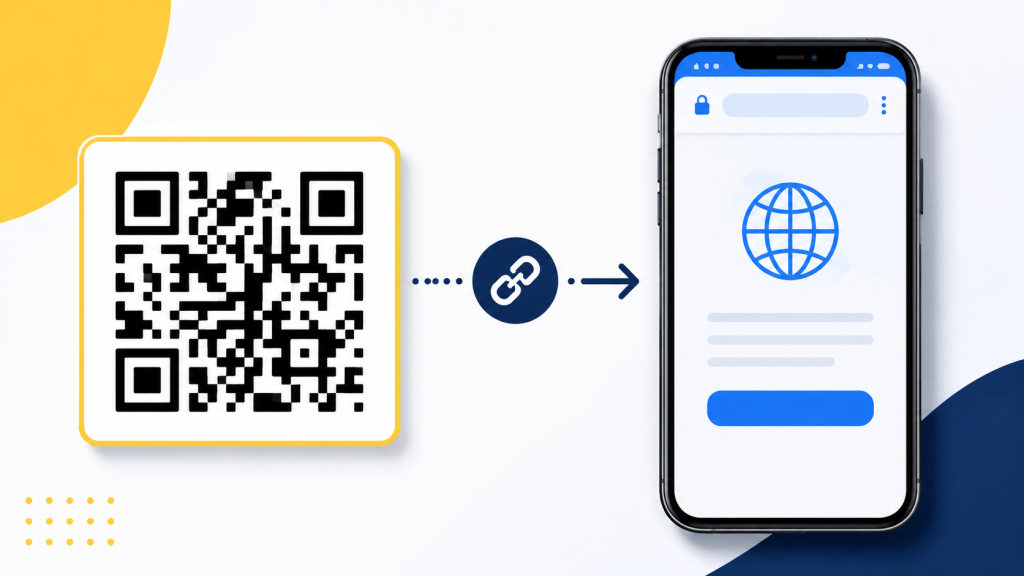
A normal QR code only stores one destination URL. It does not know whether the person scanning it uses iPhone, Android, tablet, or desktop. If you create a QR code directly from your App Store URL, Android users will not get the right experience. If you create it from your Google Play URL, iPhone users will not get the right experience.
This is not a QR code design problem. It is a destination problem. The QR code is only the doorway. The link behind it decides where people go.
For a mobile app campaign, the best setup is not “QR code to App Store” or “QR code to Google Play.” The better setup is “QR code to one smart link.” That smart link then routes users based on their device.
This matters most for offline marketing. Once you print a QR code on a poster, packaging, business card, brochure, or event banner, changing it is expensive. If the QR code points directly to the wrong store URL, you cannot fix it without replacing the printed material.
How an App QR Code Should Work
A proper app QR code should feel simple to the user, even if the routing logic behind it is smarter. The user scans the code, opens the link, and lands in the correct place.
The best flow usually looks like this:
- iPhone users scan the QR code and go to the App Store.
- Android users scan the QR code and go to Google Play.
- Desktop users scan or open the same link and go to a website, landing page, or app download page.
- The marketing team uses one QR code across posters, events, packaging, social media, and ads.
- The link owner can update destinations later without changing the printed QR code.
This is what makes a mobile app QR code different from a basic QR code. The QR code itself is not the smart part. The smart part is the link behind it.
How to Create One QR Code for App Store and Google Play
To create one QR code for App Store and Google Play, start by creating one routing link instead of creating a QR code directly from either store URL. The routing link becomes the single destination behind your QR code.
First, prepare your App Store URL and Google Play URL. These should be the final public store listing links, not temporary testing links or internal developer links. Then choose a desktop fallback URL. This can be your app website, pricing page, product page, campaign landing page, or a simple page that explains how to download the app.
Next, create a smart routing link that sends iOS users to the App Store, Android users to Google Play, and desktop users to your fallback page. After that, generate a QR code from the smart routing link.
This is the key idea: do not generate the QR code from the App Store link or the Google Play link directly. Generate it from the one link that controls both destinations.
Common Mistakes That Break App Download QR Codes
Many app QR code campaigns fail because the setup looks correct on paper but is not tested across real devices. The QR code scans, but the user experience is still broken.
A common mistake is testing only on the device used by the marketing team. If the person creating the campaign uses an iPhone, they may scan the QR code, see that it opens the App Store, and assume everything works. But Android users may still be sent to the wrong place.
Another mistake is using a generic website page as the only destination. This may work, but it adds extra steps. If the user scans from iPhone, they should not have to tap another App Store button unless there is a strong reason for that intermediate page.
A third mistake is printing the QR code before testing it in real conditions. Test it from iPhone, Android, desktop, mobile data, Wi-Fi, Instagram in-app browser, and camera app scanning. Small differences in browser behavior can affect the user journey.
The biggest mistake is treating the QR code as permanent while treating the destination as fixed. In reality, the printed QR code may stay in the world for months. Your store URLs, app campaign, or landing page may change before then.
Practical Examples for Real App Campaigns
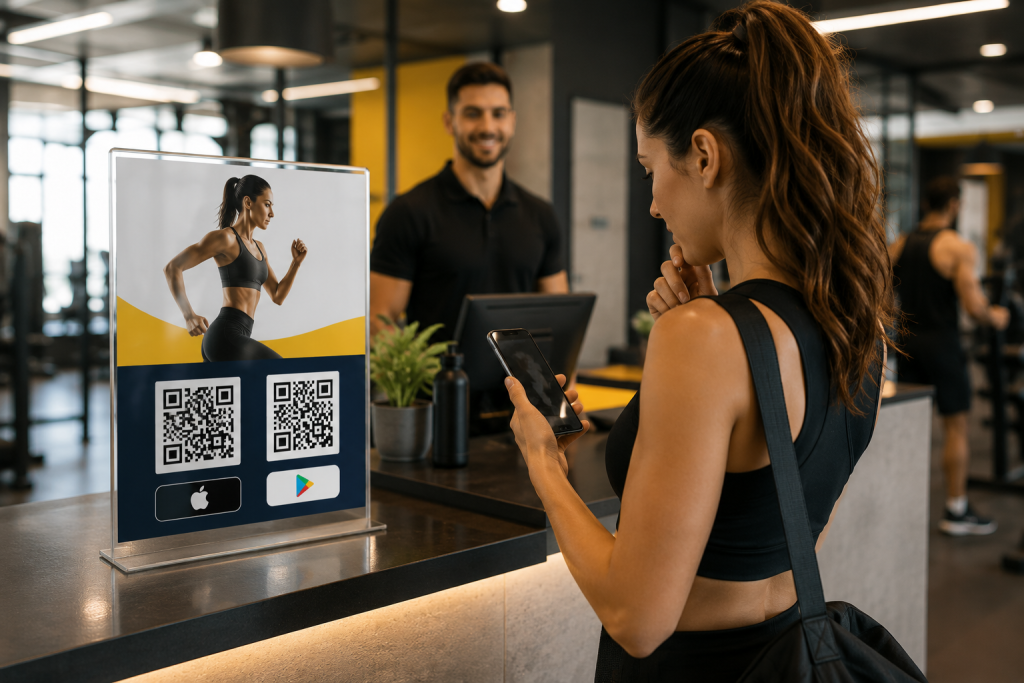
Imagine a fitness app promoting downloads inside a gym. A poster near the front desk says “Scan to start your training plan.” If the poster has two QR codes, users must stop and choose. If it has one QR code, the action is obvious. iPhone users go to the App Store, Android users go to Google Play, and desktop visitors can land on the fitness app website.
The same applies to restaurant apps, loyalty apps, event apps, travel apps, booking apps, and community apps. A single QR code works better when the user is in a hurry or scanning in a physical environment.
For influencer campaigns, one QR code is also easier to share in visual content. A creator can show one code on screen or include one short link in the caption. The same route can support different devices without making the creator explain which store link to use.
For paid ads and offline campaigns, one smart app QR code also makes reporting cleaner. Instead of splitting attention across multiple links, you can focus on one campaign entry point and understand how people interact with it.
What to Check Before You Publish the QR Code
Before you place your QR code on a poster, package, flyer, event booth, or social media creative, test the full user journey. Do not only check whether the QR code scans. Check whether it sends each user to the right destination.
Use this checklist before publishing:
- Scan the QR code with an iPhone and confirm it opens the App Store listing.
- Scan the QR code with an Android phone and confirm it opens the Google Play listing.
- Open the same link on desktop and confirm it shows a useful fallback page.
- Test from different QR scanners, including the default camera app.
- Make sure the QR code has enough contrast and quiet space around it.
- Print a small test version before printing a large batch.
- Confirm the call to action is clear, such as “Scan to download the app.”
The goal is to remove doubt. A user should not need to think about their device, choose between two codes, or understand how routing works. They should only scan and continue.
Where itlink.to Fits Into This Setup
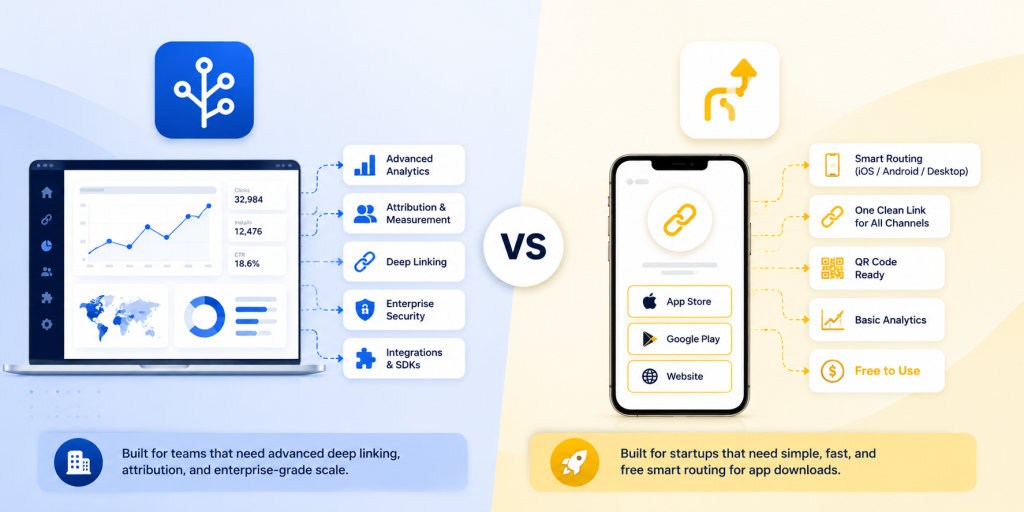
itlink.to can help you create one smart app download route for this exact use case. With One Route, you can set one link that sends iPhone users to the App Store, Android users to Google Play, and desktop users to a website or landing page.
That one route can then be used behind your QR code, in your Instagram bio, on event banners, in influencer campaigns, on packaging, or in paid ads. Instead of managing separate links for every device, you manage one link and let the route handle the destination.
This is especially useful when your campaign is already printed or shared publicly. If you need to update the store link or fallback page later, you can adjust the route instead of replacing the QR code everywhere.
For app marketers, founders, creators, and small teams, this keeps the campaign simple without forcing users through the wrong store.
Conclusion: Build One App QR Code That Works Everywhere
The best app QR code is not just a code that scans. It is a code that sends every user to the right place. If your app is available on both the App Store and Google Play, one QR code should handle both paths automatically.
Use a smart routing link as the destination behind your QR code. Send iPhone users to the App Store, Android users to Google Play, and desktop users to a useful landing page. Test the full flow before printing or publishing, and avoid locking your campaign into one store URL.
If you want to create one app QR code for App Store and Google Play, use One Route by itlink.to to build a clean cross-device app download link, then turn that link into a QR code for your campaign.
Create your One Route link here
References
- Google Play Console Brand and Marketing Resources Google’s primary hub for downloading official badge vector assets and accessing generators to create trackable marketing links.
- Apple App Store Marketing Guidelines Official documentation outlining requirements and best practices for using App Store badges, localized copy, and product imagery in advertising.
- Apple App Store Promote Resources Apple’s dedicated media services tool that allows developers to generate short links, custom QR codes, localized app badges, and embeddable players.
- Google Play Badge Guidelines Official brand standards detailing the correct usage, placement, and visual restrictions for the Google Play badge in digital and print media.