ป้ายกำกับ: smart routing

  • One App Download Link for App Store, Google Play, and Web

    One App Download Link for App Store, Google Play, and Web

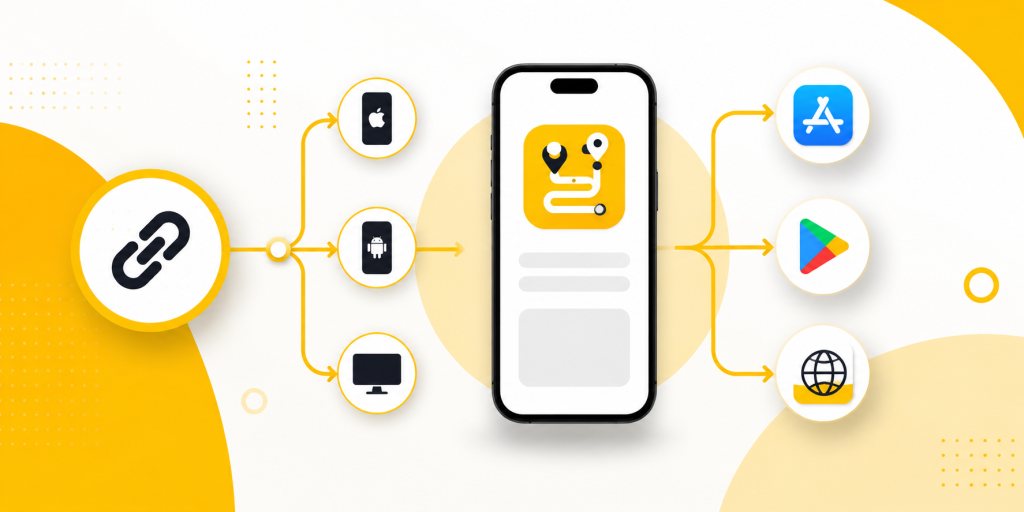
    When someone wants to download your app, the path should feel simple. But many campaigns still use separate links for iOS, Android, and desktop users. That creates friction, confusion, and missed installs. A one app download link solves this by sending each visitor to the right destination automatically: App Store for iPhone users, Google Play for Android users, and a web page for desktop visitors.

    Why App Download Links Often Create Friction

    A normal app download campaign sounds easy at first. You create an App Store link, a Google Play link, and maybe a website link. Then you place them in ads, QR codes, email campaigns, social posts, and landing pages.

    The problem starts when users arrive from different devices. An iPhone user should not land on a Google Play page. An Android user should not be sent to the App Store. A desktop user may not be ready to install immediately, so sending them directly to a mobile store can feel broken.

    This is where many app campaigns lose momentum. The user is interested, but the link does not match their device. Instead of downloading, they close the page, search manually, or forget about the app.

    The Real Problem Is Not the Link, It Is the Click Journey

    Most teams think about the link as a URL. Users experience it as a journey. They see a post, tap a button, scan a QR code, or click an ad. After that, they expect the next page to make sense instantly.

    If the journey feels wrong, trust drops. A user may wonder if they clicked the wrong link. They may think the app is not available for their device. They may decide the process is too much work.

    A better app download link removes that decision from the user. The link should understand the visitor’s device and send them to the most useful next step.

    One App Download Link for App Store, Google Play, and Web

    A one app download link gives your campaign one clean URL that works across different devices. Instead of showing separate buttons everywhere, you promote one link.

    For example, the same link can send iPhone users to the App Store, Android users to Google Play, and desktop users to your website or app landing page. This makes your campaign easier to share and easier to manage.

    It is especially useful for social media bios, influencer campaigns, QR codes, printed flyers, email newsletters, and paid ads. You do not need to guess which device the user will use. The link handles the routing.

    Practical Places Where One Link Works Better

    A single app download link is useful anywhere your audience may come from mixed devices.

    • Social media bio: Use one link instead of asking users to choose between iOS and Android.
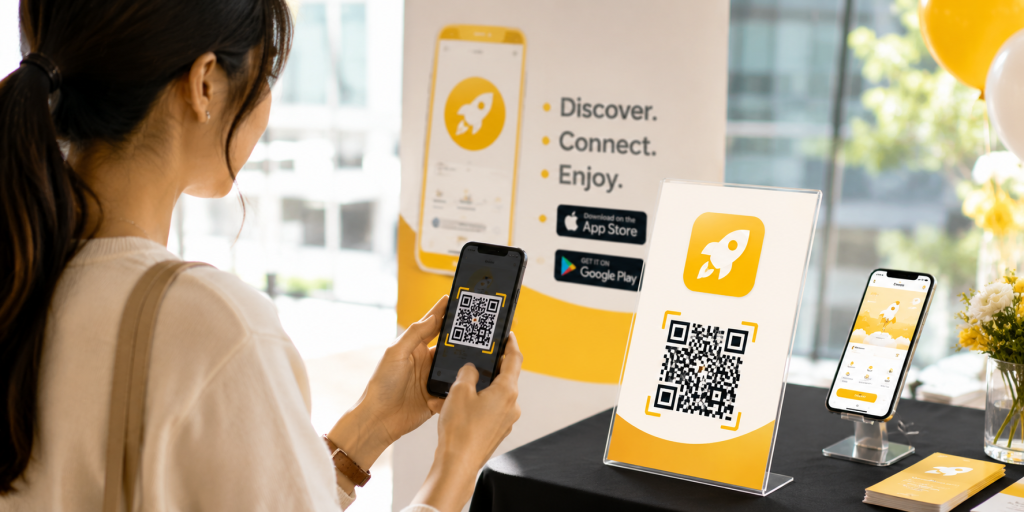
    • QR code campaign: Print one QR code on posters, packaging, menus, or event materials.
    • Paid ads: Send all mobile traffic through one clean campaign link.
    • Influencer posts: Give creators one link that works for every follower.
    • Email campaigns: Let desktop users visit a landing page while mobile users go to the right store.
    • Offline marketing: Avoid printing separate QR codes for App Store and Google Play.

    This is not only cleaner for users. It is also easier for your team because one campaign link can be reused across channels.

    Common Mistakes That Reduce App Installs

    Many app campaigns fail because the link setup is too manual. The campaign may look polished, but the download path still feels messy.

    A common mistake is placing two store buttons in every campaign. This works on a website, but it is not ideal for social bios, QR codes, short-form videos, or printed materials. Another mistake is using only one store link, which can exclude half of your mobile audience.

    Some teams also forget desktop users. A desktop visitor may not want to open a mobile app store page. A better fallback is a landing page with app details, screenshots, and store buttons.

    The goal is simple: every user should feel like the link was made for their device.

    How Smart Routing Improves the Download Experience
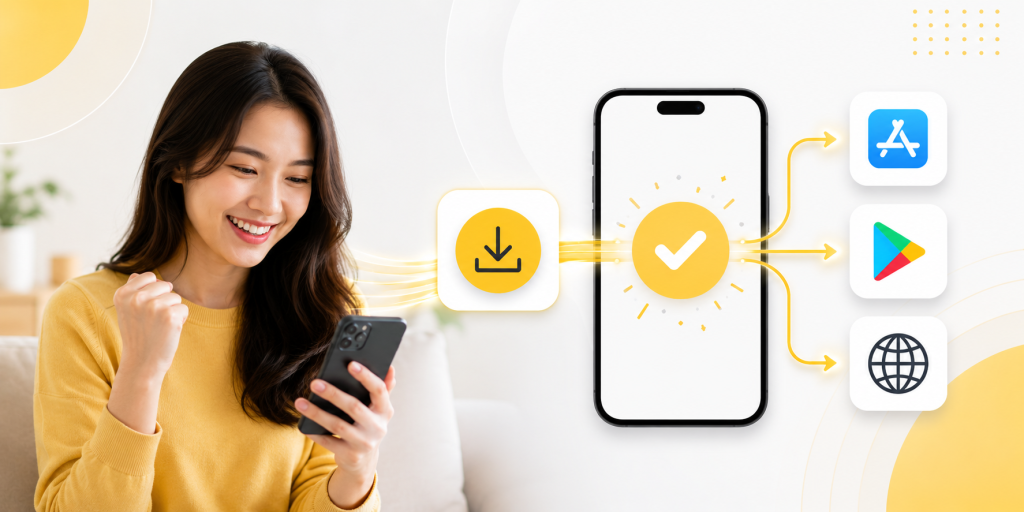
    Smart routing means the link checks useful signals, such as device type or operating system, before sending the user to a destination. The user does not need to choose manually.

    For app campaigns, this is powerful because the best destination depends on the visitor. iOS users need the App Store. Android users need Google Play. Desktop users often need a web page. Some campaigns may also need different pages by country, language, or campaign source.

    This helps reduce wasted clicks. It also creates a more professional experience because the link feels intentional from the first tap.

    What to Track After Someone Clicks

    A good app download link should not only redirect users. It should also help you understand performance. Click tracking can show which channels bring attention, which campaigns perform better, and where users are coming from.

    For example, you may find that Instagram brings many clicks but few serious users. You may discover that QR codes at events perform better than expected. You may also learn that desktop traffic needs a stronger landing page before users install later.

    Without tracking, every campaign feels like a guess. With tracking, you can improve the path from click to download.

    What a Better App Link Setup Should Include

    Before promoting your app, your link setup should be clear and flexible.

    • iOS destination: Send iPhone and iPad users to the App Store.
    • Android destination: Send Android users to Google Play.
    • Desktop fallback: Send laptop and desktop visitors to a web landing page.
    • Clean short URL: Make the link easy to share in bios, ads, and offline materials.
    • QR code support: Use the same routing logic for printed campaigns.
    • Analytics: Track clicks by campaign, channel, device, or location when available.

    With itlink.to, you can create a smart link for app campaigns and use it as one clean destination across App Store, Google Play, and web traffic.

    Conclusion: Make the Download Path Feel Effortless

    A one app download link makes your app campaign easier for users and easier for your team. Instead of managing separate links for iOS, Android, and desktop, you can promote one clean URL that sends people to the right place.

    This matters because app installs often depend on small moments. A user taps because they are interested. If the next step is confusing, you may lose them. If the next step is clear, they are more likely to continue.

    Create one smart app download link with itlink.to and give every user a smoother path to install your app.

    References

  • App Download Link Not Working on iPhone: Common Causes and Fixes

    App Download Link Not Working on iPhone: Common Causes and Fixes

    When your iPhone app download link does not work, the problem can be frustrating because the same campaign link may work perfectly on Android, desktop, or even another iPhone. One user taps the link and reaches the App Store correctly. Another user gets stuck in an in-app browser, lands on the wrong page, sees a blank screen, or never reaches the install page at all.

    This is a serious problem for app marketers, founders, creators, and product teams. A broken app download experience can waste ad spend, reduce installs, hurt QR code campaigns, and make users lose trust before they even try your app.

    Most iPhone app download link problems are not random. They usually come from a few clear issues: the App Store URL is wrong, the redirect path is too complicated, Universal Links are taking over unexpectedly, the link behaves differently inside social media apps, or the campaign does not route iPhone, Android, and desktop users to different destinations.

    This guide explains the most common causes and practical fixes so you can find where the link is breaking and make your download campaign work more reliably.

    Why Your App Download Link Works on Android but Fails on iPhone

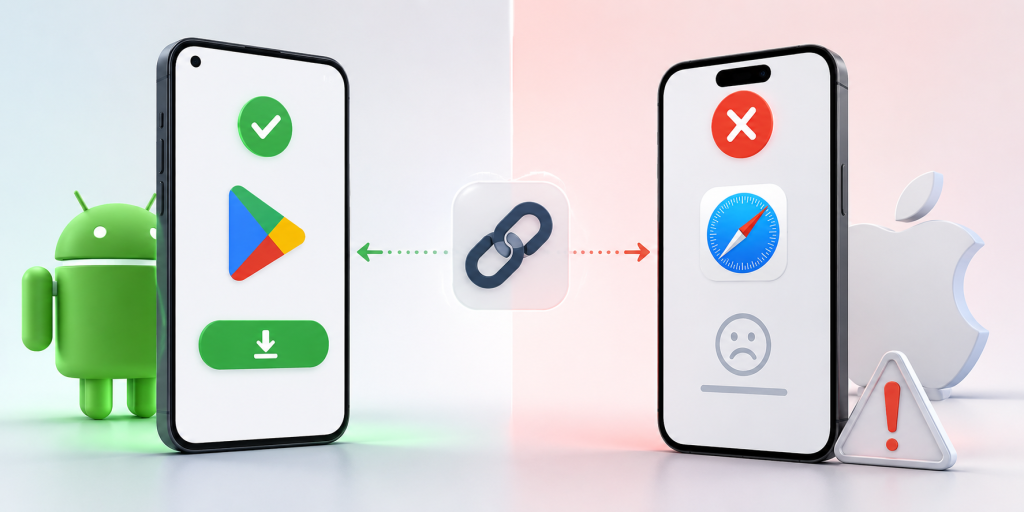
    One of the most confusing situations is when your download link works on Android but fails on iPhone. This usually happens because Android and iOS do not handle app store links, redirects, and in-app browsers in exactly the same way.

    For example, an Android user may tap your campaign link and go straight to Google Play. An iPhone user may tap the same link from Instagram, but instead of opening the App Store, the link stays inside Instagram’s browser or opens a blank redirect page. From the user’s point of view, the link is broken.

    In many cases, the link itself is not fully broken. The problem happens somewhere between the click and the final destination. The issue might be a URL shortener adding an extra redirect, a tracking tool sending the user through several URLs, a Universal Link opening the website instead of the App Store, or an App Store link copied from the wrong place.

    A simple way to think about the journey is this: the user taps or scans the link, the link redirects, the system detects the device, and the user reaches the App Store page. If any step fails, the whole experience feels broken.

    How to Tell Whether the Problem Is the Link, the App Store, or iOS

    Before changing your whole campaign setup, identify where the issue is actually happening. Many teams blame Apple or the App Store too early when the real problem is the link path.

    Start by opening the final App Store URL directly on an iPhone in Safari. Do not test the short link first. Use the direct iOS App Store link that should open your app listing. If the direct App Store link fails, the problem is probably the destination URL, app availability, country setting, or App Store listing itself.

    If the direct App Store link works, test the short link or campaign link in Safari. If it fails there, the problem is likely your redirect setup, tracking parameters, short link tool, or landing page logic.

    If the campaign link works in Safari but fails inside Instagram, TikTok, Facebook, LinkedIn, email, SMS, or another app, the issue is likely related to in-app browser behavior. Some apps open links inside their own browser first, and that can affect redirects, Universal Links, and the handoff to the App Store.

    This step-by-step testing saves time because it separates the final destination problem from the campaign link problem.

    The First Thing to Check Before Blaming Apple

    The first thing to check is the App Store URL format. A surprising number of iPhone download issues come from using the wrong kind of App Store link.

    A direct App Store listing link is usually more reliable than a search result link, a preview link, or a link copied from an internal tool. If your URL sends users to a search page instead of the app listing, the result may vary depending on country, language, device, and App Store availability.

    Another common mistake is copying a link with too many extra parameters. Tracking parameters are useful, but they can sometimes make troubleshooting harder. When testing, use the cleanest version of the App Store URL first. Confirm that it opens the correct app listing on a real iPhone.

    Also check whether the app is available in the country where the user is testing. If your app is not available in that App Store region, the link may look broken even when the URL format is technically correct.

    Do this before reviewing Universal Links, short links, QR codes, or campaign tools. If the final App Store URL is wrong, every link built on top of it will also fail.

    Why Universal Link Not Working Issues Can Break Download Campaigns

    Universal Links are useful when you want an iOS link to open your app if it is already installed. But they can create confusion when your main goal is to send new users to download the app.

    A Universal Link may open the installed app, open a webpage, or fail to open the expected destination depending on the app configuration, domain association, user device, and previous user behavior. If the Apple App Site Association file is missing, invalid, blocked, or configured incorrectly, the Universal Link may not behave as expected.

    The problem becomes more obvious in download campaigns. A new user who does not have the app installed needs to reach the App Store. But if the link is designed mainly as a Universal Link, the fallback experience may send that user to a website instead of the install page.

    This is why “universal link not working” is often not just a developer issue. It can become a marketing issue when paid ads, QR codes, influencer links, and social media bios depend on that link to drive installs.

    If your campaign goal is app downloads, make sure your link has a clear path for new iPhone users. Opening the app for existing users is useful, but new users still need a reliable App Store destination.

    Real Examples of iPhone Download Links Breaking

    In a social media bio campaign, a creator may place one short link in an Instagram profile. Android users tap the link and reach Google Play correctly, but iPhone users stay inside Instagram’s browser and never reach the App Store. The team may think the short link is broken, but the real issue may be how the redirect behaves inside the in-app browser.

    In a QR code campaign, a restaurant, event booth, or retail store may print one QR code on physical materials. If that QR code points directly to Google Play, Android users can install the app, but iPhone users land on the wrong store. If the QR code points only to the App Store, Android users have the same problem in reverse.

    In a paid ads campaign, a Facebook or TikTok ad may receive mixed traffic from iPhone, Android, and desktop users. If the ad uses only an iOS App Store link, iPhone users may be fine, but Android and desktop visitors will have a poor experience. If the ad uses only a homepage link, mobile users may need extra taps before they can install.

    In an email campaign, the link may work on desktop but fail on mobile because the email client opens the link through a tracking redirect first. By the time the user reaches the final destination, the device detection or App Store handoff may not work as expected.

    These examples show why testing only the final URL is not enough. You need to test the full user journey from the exact place where users will click.

    Fix Redirect and Short Link Problems

    Redirects are often necessary for tracking and analytics, but too many redirects can make an iPhone app download link unreliable. Every extra step increases the chance that Safari, an in-app browser, or a tracking system will interrupt the flow.

    A weak redirect path may look like this: short link, tracking URL, campaign URL, landing page redirect, device detection redirect, then App Store. That may still work on desktop, but it can become slow or unpredictable on iPhone.

    A better path is much simpler. The user taps one campaign link, the link detects the device, and iPhone users go directly to the App Store. Android users go to Google Play. Desktop users go to a useful landing page.

    Do not stack multiple tools unless you really need to. If your short link tool, analytics tool, landing page builder, and app routing logic all add their own redirects, the user experience becomes harder to control.

    When troubleshooting, remove unnecessary redirect steps and test again. If the link starts working after simplifying the path, the problem was not the App Store. It was the route to the App Store.

    Make Sure Each Device Has the Right Destination

    Many app download links fail because the campaign uses one destination for every visitor. That sounds simple, but it does not match how users actually behave.

    A good app campaign needs different destinations:

    • iPhone users should go to the Apple App Store.
    • Android users should go to Google Play.
    • Desktop users should go to a landing page with app information.
    • QR code users should follow the same device-based routing.
    • Unsupported devices should reach a fallback page instead of an error.
    • Campaign clicks should still be tracked for analytics.

    This matters because your audience is usually mixed. A QR code at an event may be scanned by iPhone and Android users. A social media bio may be opened from mobile and desktop. A paid ad may receive traffic from multiple devices in the same campaign.

    This is where smart routing becomes useful. Instead of creating separate links for each device, you can use one link that sends each visitor to the correct destination. For example, itlink.to One Route helps you create a single campaign link that can send iPhone users to the App Store, Android users to Google Play, and desktop users to a landing page.

    Test the Full Journey Before Launching

    Testing should happen before your link appears in ads, social profiles, printed QR codes, packaging, event materials, or influencer posts. Once a broken link is published, you may lose installs before you notice the problem.

    Test your direct App Store URL first. Then test your short link or campaign link on a real iPhone in Safari. After that, test the same link from the real channels where users will click it, such as Instagram, TikTok, Facebook, LinkedIn, email, SMS, and QR code scans.

    Also test Android and desktop behavior. Android users should not be sent to the Apple App Store. Desktop users should not be left on a mobile-only store page with no explanation. They should land on a page that explains the app and gives them a clear next step.

    After testing the destinations, check your analytics. Look at device data, browser data, locations, and click logs. If you see iPhone clicks but very few installs, review the redirect path and final App Store URL again.

    Good testing does not need to be complicated. It just needs to match the real user journey.

    How to Prevent This Problem in Future Campaigns

    The best way to prevent iPhone app download link problems is to avoid building fragile campaign flows. A link should not depend on too many redirects, unclear fallbacks, or manual device instructions.

    Create one clean campaign link for each major campaign. Define the iPhone destination, Android destination, desktop destination, and fallback destination before publishing. Then use that same link in your QR code, social bio, paid ads, email campaign, and printed materials.

    This reduces copy-paste mistakes and makes performance easier to track. Instead of checking several different links, you only need to monitor one campaign link and its analytics.

    It also makes your campaign easier to update. If your App Store URL changes or your landing page needs improvement, you can update the destination behind the link instead of replacing every QR code, ad URL, or social media bio link manually.

    For app download campaigns, reliability is part of conversion optimization. The fewer steps users need to take, the more likely they are to reach the correct install page.

    If your app download link is not working on iPhone, do not assume Apple is the problem. Most issues come from incorrect App Store URLs, Universal Link behavior, in-app browser limitations, unnecessary redirects, missing fallbacks, or campaigns that send every device to the same destination.

    The fix is to simplify the route. iPhone users should reach the App Store quickly. Android users should reach Google Play. Desktop users should reach a helpful landing page. QR code and social media users should get the same reliable experience.

    Before launching your next app campaign, test the full journey on real devices and real channels. If you want one link that automatically sends users to the right destination by device, create your One Route link with itlink.to here

    References

  • Android App Link Not Working? How to Fix Play Store Redirects

    Android App Link Not Working? How to Fix Play Store Redirects

    When your android app link not working issue appears in the middle of a campaign, it can feel confusing because the link may look perfectly fine. You tap it on your phone, expect it to open Google Play, but it opens a browser, shows an error, lands on the wrong page, or does nothing useful at all.

    This problem is common in app download campaigns because Android links are not always as simple as “paste the Play Store URL and publish.” The final result depends on the link format, the browser, the app store availability, the user’s device, tracking parameters, redirects, QR scanners, social media apps, and sometimes Android App Links configuration.

    For marketers, the problem is usually not technical at first. The real problem is lost installs. A user scans a QR code, taps an Instagram bio link, clicks an ad, or opens a link from email. If that link does not send them to the correct Play Store listing quickly, many users will not try again.

    This guide explains how to diagnose the issue, fix common Play Store redirect problems, and build a more reliable Android app download flow.

    Why Android App Download Links Break in Real Campaigns

    Most Android app download link problems happen because the link was tested in only one situation. Someone may copy the Google Play URL, open it on their own Android phone, confirm that it works, and assume the campaign is ready. Then the same link behaves differently when used inside Instagram, TikTok, Facebook, Gmail, Chrome, a QR code scanner, or a paid ad redirect.

    Android traffic is fragmented. A user may be using Chrome, Samsung Internet, a social media in-app browser, a device with Google Play disabled, or a phone where another app has taken over certain link behavior. Some users may already have the app installed. Others may be on tablets, Chromebooks, Android TV devices, or work-managed phones with restrictions.

    A link can also break because of how the redirect is built. If your campaign link passes through several tracking tools before reaching Google Play, one redirect may remove parameters, encode the URL incorrectly, or turn a clean Play Store URL into something the browser cannot handle properly.

    This is why the right question is not only “Does the Play Store link work?” A better question is “Does this link send every Android user to the right destination from every place we plan to promote it?”

    Use the Correct Google Play URL Format First

    Before checking advanced problems, confirm that your base Play Store URL is correct. The safest public format for a specific Android app listing is:

    https://play.google.com/store/apps/details?id=your.package.name

    The most important part is the package name after id=. This must match your real Android application ID. A small typo, old package name, staging app ID, or copied internal build ID can send users to a broken page or a different app.

    For example, if your Android package name is com.example.app, your public Play Store link should point to:

    https://play.google.com/store/apps/details?id=com.example.app

    Avoid using a search result link as your main campaign destination. A search link may work when your app ranks well, but it is less reliable than linking directly to the app listing. Also avoid copying URLs with unnecessary session data, language settings, or temporary parameters from your own browser unless you understand what they do.

    A clean Play Store URL gives you a better foundation. Once that works, you can add tracking parameters carefully or place it behind a smart routing link.

    Android App Link Not Working: The Most Common Causes

    When an Android app link is not working, the cause is usually one of a few repeatable issues. Checking these first can save hours of guessing.

    • The Play Store URL uses the wrong package name, an old app ID, or a staging package instead of the production app.
    • The app is not publicly available in the user’s country, device type, Android version, or Google account context.
    • A redirect tool changes the URL, strips the id= parameter, or double-encodes the destination.
    • The link was tested in Chrome but fails inside an in-app browser such as Instagram, TikTok, Facebook, or LinkedIn.
    • The app is installed, but the link is meant for download only, so Android tries to open the app instead of the store.
    • Android App Links are configured, but domain verification is incomplete or the app does not handle the target path correctly.
    • A QR code contains an outdated campaign URL that now points to an old destination.
    • UTM parameters are added incorrectly, causing the final Play Store URL to become malformed.
    • The link sends all devices to one destination, so desktop, iPhone, and Android users do not get a clean experience.

    The fastest way to narrow the cause is to test the final destination, not only the short link. Open the short link, follow the redirect, and inspect where the user actually lands. Many teams only check the first link and miss the broken final URL.

    Check Whether the Problem Is the Link, the Device, or the Browser

    A Play Store redirect issue can come from three different places: the link itself, the device environment, or the browser/app where the link is opened. Testing these separately makes the problem easier to solve.

    Start with the raw Play Store URL. Open it directly on an Android phone in Chrome. If it fails there, the issue is probably the Play Store URL, the app listing, package name, or store availability. Do not debug your QR code or ad platform yet. Fix the base URL first.

    Next, test the same raw Play Store URL from another Android device. If it works on one device but not another, check country availability, Android version support, device compatibility, and whether Google Play services are available. Some Android users may be on devices that do not behave like standard Google Play phones.

    Then test your campaign link. This means the branded short link, QR code link, ad link, email link, or social bio link that users actually tap. If the raw Play Store URL works but the campaign link fails, your redirect setup is the likely problem.

    Finally, test inside the real channel. A link that works in Chrome may behave differently inside Instagram’s in-app browser. A link that works from email may fail from a QR scanner. A link that works from your office Wi-Fi may behave differently for users in another country.

    Do not rely on one successful test. For app downloads, the context matters.

    Why Play Store Redirect Links Fail After Adding Tracking

    Tracking is useful, but it is also one of the easiest ways to break an Android download link. Many campaigns add UTM parameters, ad click IDs, influencer codes, source tags, or analytics redirects. Each layer adds another chance for the destination to change.

    A common mistake is adding campaign parameters before checking whether the original Play Store URL still keeps its required structure. The id= parameter must remain intact because it tells Google Play which app listing to open. If your tracking setup accidentally changes ?id= into another format or places parameters in the wrong order, users may land on a generic Play Store page instead of your app.

    Another issue is redirect chains. For example, a user taps a short link, which redirects to a tracking link, which redirects to another analytics link, which finally redirects to Google Play. That can work, but it is fragile. In-app browsers, ad platforms, privacy settings, and slow networks can interrupt the chain.

    The cleaner approach is to keep the user-facing link simple and let your link management layer handle routing and analytics. For example, one branded link can detect Android users and send them directly to the correct Google Play destination, while still tracking clicks at the link level.

    When Android App Links Are Different From Play Store Links

    An Android App Link and a Play Store download link are related, but they are not the same thing. This difference matters when you are troubleshooting.

    A Play Store link is mainly for getting users to your app listing so they can install the app. It usually uses the play.google.com/store/apps/details?id= format.

    An Android App Link is a verified web URL that can open specific content inside your installed Android app. For example, a link to https://example.com/product/123 might open the product screen inside your app if the app is installed and the domain is verified.

    The confusion happens when a team expects one link to do everything without planning the flow. If the app is not installed, should the user go to Google Play? If the app is installed, should the user open a specific screen? If the link is opened on desktop, should it go to a landing page? If the link is opened on iPhone, should it go to the App Store?

    For install campaigns, the safest starting point is a reliable device-based routing link. Deep linking into installed app content can be added later, but app download campaigns usually need the store redirect to work first.

    How to Test Android Redirects Before Launch

    Testing should be part of your launch checklist, not something you do after users complain. A good test does not need to be complicated, but it should match real user behavior.

    • Test the raw Google Play URL on at least two Android devices.
    • Test the final campaign link, not only the destination URL.
    • Test from Chrome and at least one in-app browser where you will promote the link.
    • Scan the QR code with a real phone camera, not only a desktop preview.
    • Test on Wi-Fi and mobile data if the campaign is important.
    • Test with the app not installed and already installed.
    • Check whether the same link behaves correctly on iPhone and desktop.
    • Confirm the final URL still contains the correct package name.
    • Ask someone outside the team to test the link before launch.

    The last point is underrated. Internal teams often test links from the same devices, accounts, browsers, and countries. A fresh tester can reveal problems that the team’s normal setup hides.

    Common Mistakes That Make Android Users Drop Off

    One of the biggest mistakes is sending every user to the same generic landing page and expecting them to choose the right store manually. That may look flexible, but it adds friction. On mobile, every extra tap reduces the chance of installation.

    Another mistake is using a desktop-first landing page for mobile app downloads. If an Android user taps a campaign link from TikTok or scans a QR code at an event, they usually expect to land directly on Google Play. A page with multiple buttons, slow loading, or unclear copy can feel like a broken experience even if it technically works.

    Teams also forget to update old QR codes. A QR code printed on posters, packaging, flyers, event booths, or receipts may keep sending traffic to an outdated link long after the app listing changes. If the QR code points directly to an old Play Store URL, it is hard to fix. If it points to a managed routing link, you can update the destination without reprinting the QR code.

    Another common issue is overcomplicating the redirect chain. The more tools between the user and Google Play, the harder it becomes to know where the break happened. For most app download campaigns, the best link is the one that is short, trackable, editable, and direct.

    A Cleaner Way to Handle Android, iPhone, and Desktop Traffic

    If your campaign only targets Android users, a clean Google Play link may be enough. But many real campaigns receive mixed traffic. People open the same link from Android phones, iPhones, desktops, tablets, QR codes, social media profiles, email campaigns, and ads.

    This is where a smart routing setup becomes useful. Instead of creating separate links for every platform, you use one link that sends Android users to Google Play, iPhone users to the App Store, and desktop users to a landing page.

    For example, a campaign link can work like this:

    Android users go to the Google Play listing. iPhone users go to the App Store listing. Desktop users go to a website page that explains the app and shows store buttons.

    This approach is especially useful for QR codes and social media bios because you usually get only one link. You do not want to ask users to choose their device manually when the link can route them automatically.

    For itlink.to, One Route is designed for this type of app download flow. You can use one managed link for app campaigns and route users by device instead of relying on one static Play Store URL for everyone.

    Conclusion: Fix the Android App Link Not Working Problem Before It Costs Installs

    An android app link not working issue is not just a small technical bug. It can directly reduce installs from ads, QR codes, social media, email, influencer campaigns, and launch pages. The user may not know why the link failed. They simply leave.

    Start by checking the basics: correct package name, clean Play Store URL, public app availability, and final redirect behavior. Then test the link in the real places where users will tap it, including in-app browsers and QR scans.

    If your audience includes Android, iPhone, and desktop users, do not force one static link to handle every situation. Use a smarter routing setup that sends each device to the right destination.

    To make your app download link easier to manage, test, and update, create one smart route for your campaign with itlink.to One Route: https://itlink.to/#one-route

    References

  • Best Firebase Dynamic Links Alternatives in 2026

    Best Firebase Dynamic Links Alternatives in 2026

    Firebase Dynamic Links alternatives are now important for any team that used Firebase links for app downloads, QR codes, referral links, social media campaigns, or mobile app routing. The shutdown created a practical problem: old link journeys need to be replaced, but not every team needs the same type of solution.

    Some teams need deep links that open a specific screen inside an app. Some need a simple app download link that sends iPhone users to the App Store and Android users to Google Play. Others need attribution, install tracking, paid campaign reporting, and advanced mobile measurement.

    This guide compares the best Firebase Dynamic Links alternatives in 2026 based on real use cases, so you can choose the right replacement without overpaying for features you do not need.

    Firebase Dynamic Links Shut Down. What Should You Replace First?

    The first mistake many teams make is looking for a tool before understanding what their Firebase Dynamic Links were actually doing. That creates confusion because Firebase Dynamic Links was used for several different jobs. A single team might have used it for app downloads, invite links, QR codes, referral campaigns, email buttons, social media links, and deep links into specific app screens.

    Before choosing a Firebase Dynamic Links replacement, start with your most visible and highest-risk links. These are usually the links placed in ads, QR codes, app landing pages, onboarding emails, influencer posts, and social media bios. If those links send users to the wrong destination, the impact is immediate. App downloads drop, users get confused, and campaign performance becomes harder to measure.

    For example, a QR code on a poster should not send every user to a generic homepage. An iPhone user should go to the Apple App Store, an Android user should go to Google Play, and a desktop user should probably see a landing page with app information. That is a routing problem, not necessarily an enterprise deep linking problem.

    So the first thing to replace is not always the most advanced feature. Replace the link journeys that directly affect user acquisition, app installs, and active campaigns. Once those are safe, you can plan deeper product-level linking and attribution later.

    What Your Firebase Links Were Actually Doing

    Not every Firebase Dynamic Link had the same purpose. Some links were simple app download links. Some were used for app-to-app sharing. Some opened a specific product, profile, booking, event, or invitation screen inside the app. Others were used mainly because they looked cleaner than long App Store and Google Play URLs.

    This matters because different replacements solve different problems. Native App Links and Universal Links are useful when you want installed users to open the app from a web URL. Smart routing tools are useful when you want one link to send different users to different destinations based on device. Enterprise platforms are useful when you need deferred deep linking, install attribution, paid media reporting, and advanced growth analytics.

    A good audit should answer three questions for every important link. Where is the link used? What should happen on iPhone, Android, and desktop? Does the link need to open the app, send users to an app store, track campaign performance, or remember a destination after installation?

    Once you answer those questions, the replacement choice becomes much clearer. You stop asking, “What is the best Firebase Dynamic Links alternative?” and start asking, “Which tool solves this specific link journey?”

    Best Firebase Dynamic Links Alternatives in 2026

    The best Firebase Dynamic Links alternatives in 2026 are not all direct copies of Firebase Dynamic Links. They are different types of tools that solve different parts of the same problem.

    • itlink.to One Route: Best for simple app store routing where iPhone users go to the App Store, Android users go to Google Play, and desktop users go to a website or landing page.
    • Branch: Best for advanced deep linking, deferred deep linking, enterprise growth journeys, and complex app referral flows.
    • AppsFlyer OneLink: Best for teams already using AppsFlyer for mobile attribution and paid user acquisition.
    • Adjust: Best for mobile measurement, attribution, and performance marketing teams that need campaign-level reporting.
    • Native App Links and Universal Links: Best for product teams that want app-owned deep links using their own domain.
    • Bitly: Best for branded short links and basic campaign link management.
    • Dub: Best for modern marketing links, short URLs, and link analytics.

    The right choice depends on what you lost when Firebase Dynamic Links shut down. If you lost a simple app download link, you probably do not need an enterprise attribution platform. If you lost deferred deep linking for referral flows, a basic short link tool will not be enough. If you lost branded short links with basic click analytics, you may not need mobile SDKs at all.

    itlink.to One Route: Best for App Store and Google Play Routing

    itlink.to One Route is a strong fit when your main need is simple, reliable device-based routing. This is one of the most common Firebase Dynamic Links replacement use cases. You want one clean link that works everywhere, but the destination should change depending on the user’s device.

    For example, a mobile app campaign might use one link in a TikTok bio, Instagram profile, printed QR code, email footer, or paid ad. When someone clicks from an iPhone, they should go to the Apple App Store. When someone clicks from Android, they should go to Google Play. When someone clicks from desktop, they should go to your app landing page. That is exactly the kind of journey smart routing is designed to solve.

    This is useful because many app download campaigns receive mixed traffic. A social media post does not know whether the next visitor is on iOS, Android, or desktop. A QR code on a restaurant table, event booth, flyer, receipt, or packaging also needs to work for everyone. Asking users to choose their platform manually adds friction and can reduce conversions.

    One Route is not trying to replace every advanced deep linking platform. Its value is that it solves a clear marketing problem without unnecessary complexity. If your team mainly needs one link for App Store, Google Play, and desktop routing, a smart routing tool can be faster and easier than implementing a full enterprise mobile attribution stack.

    Branch: Best for Advanced Deep Linking and App Growth

    Branch is one of the strongest options for teams that need advanced deep linking and app growth infrastructure. It is better suited for companies with complex user journeys, referral programs, content sharing flows, and post-install destinations. If your Firebase Dynamic Links were used to open specific in-app pages and continue the user journey after installation, Branch may be worth considering.

    For example, a marketplace app might need a link that opens a specific product page. A travel app might need to open a hotel, itinerary, or destination guide. A social app might need invite links that bring new users into a specific profile, group, or conversation. These use cases are more complex than simple app store routing because the link needs to preserve context.

    The tradeoff is complexity. Branch can be powerful, but it may require SDK integration, developer setup, testing, attribution configuration, and ongoing management. For a team that only needs a clean app download link, that may be more than necessary.

    Branch is best when deep linking is part of the product experience, not just a marketing link. If users frequently share app content, invite friends, or need to land on specific screens after installing the app, Branch becomes more relevant.

    AppsFlyer OneLink and Adjust: Best for Attribution and Paid Acquisition Teams

    AppsFlyer OneLink and Adjust are best for teams where the link is connected to mobile attribution, paid acquisition, and performance marketing. These platforms are usually not chosen only because a team needs a short link. They are chosen because the business needs to understand which campaigns, ad networks, channels, and sources are driving installs and user actions.

    This matters for companies spending serious money on mobile ads. If your team runs paid campaigns across Meta, Google, TikTok, influencer channels, and partner networks, you may need more than device routing. You may need install attribution, campaign reporting, fraud controls, SKAdNetwork support, and post-install event measurement.

    In that situation, the replacement question changes. You are not only replacing Firebase Dynamic Links. You are choosing part of your mobile growth analytics stack. AppsFlyer and Adjust are stronger fits when marketing performance data is just as important as the link destination.

    However, if you are not running complex paid acquisition, these tools may be too heavy. A startup launching its first app campaign may not need a full attribution platform just to send users to the correct app store. For simple app download journeys, a lightweight smart routing link may be easier to set up and maintain.

    Native App Links and Universal Links: Best for Product-Owned Deep Links

    Native App Links and Universal Links are important because they give your own domain the ability to open your app. Android App Links and iOS Universal Links are platform-level methods for connecting web URLs to app destinations. When configured properly, they allow supported links to open inside the app instead of staying in the browser.

    This is a good long-term foundation. It gives your product and engineering team more control because the link relationship is tied to your own domain and app configuration. It is especially useful for account verification links, shared content links, invite flows, product pages, booking pages, or any screen that should open directly in the installed app.

    The limitation is that native app links are not a full marketing link management system by themselves. They do not automatically give you a dashboard for short links, QR codes, campaign analytics, device routing, or easy destination changes. They also require careful technical setup. Your domain association files, app configuration, URL paths, and fallback behavior all need to be tested on real devices.

    For many teams, native App Links and Universal Links should be part of the replacement plan, but not the whole plan. They are excellent for product-owned deep links. For public marketing links, app download campaigns, and QR codes, you may still want a smart routing layer on top.

    Bitly and Dub: Best for Link Management and Short URLs

    Bitly and Dub are useful when your Firebase Dynamic Links use case was closer to link management than deep linking. If your team mainly wanted clean links, branded URLs, custom aliases, and click analytics, these tools may be enough for some campaigns.

    For example, a marketing team might need a short link for an email campaign, a LinkedIn post, a website button, or a downloadable PDF. In these cases, the most important features may be link branding, easy editing, analytics, and team management. Bitly is well known in this category, while Dub is popular with modern teams that want a simple link management experience.

    The key limitation is that short link tools are not automatically full Firebase Dynamic Links replacements. A short URL is not the same as app routing, deferred deep linking, or mobile attribution. If your link needs to decide between App Store, Google Play, and desktop destinations, make sure the tool supports that routing logic. If your link needs to open an exact in-app screen after installation, make sure your app and link setup support that journey.

    Bitly and Dub are best when your problem is managing links, not rebuilding mobile deep linking infrastructure. They can be part of your link stack, but they should not be chosen blindly just because they create short URLs.

    How to Choose the Right Firebase Dynamic Links Alternative

    Choosing the right replacement becomes easier when you match the tool to the use case. Do not start with the biggest platform. Start with the link behavior your users actually need.

    • If you need iPhone users to go to the App Store, Android users to go to Google Play, and desktop users to go to a landing page, choose a smart routing solution.
    • If you need installed users to open a specific app screen, implement Native App Links and Universal Links.
    • If you need deferred deep linking, referral flows, and complex post-install journeys, consider Branch.
    • If you need attribution, paid campaign reporting, and mobile measurement, consider AppsFlyer OneLink or Adjust.
    • If you need branded short URLs and basic analytics, consider Bitly or Dub.
    • If you need QR codes for app downloads, make sure the destination works correctly across iPhone, Android, and desktop.
    • If you need a fast Firebase Dynamic Links replacement for marketing campaigns, avoid overbuilding before you know your real requirements.

    The best choice is often a combination. Your app may use Universal Links for product-owned deep links, a smart routing tool for app download campaigns, and a separate analytics platform for paid acquisition. That is normal. Firebase Dynamic Links combined multiple jobs into one product, but your replacement does not always need to be one tool.

    The best Firebase Dynamic Links alternatives are the ones that match the link journey you need to replace. If your biggest problem is app store routing, use a smart routing solution. If your biggest problem is deep linking into app screens, use Native App Links, Universal Links, or a dedicated deep linking platform. If your biggest problem is attribution, look at mobile measurement tools like AppsFlyer or Adjust.

    For many teams, the practical answer is not to buy the most powerful platform immediately. The practical answer is to protect the links that affect users and campaigns first. Start with app download links, QR codes, social media bios, landing page buttons, referral links, and paid campaign URLs. Then decide which parts need smart routing, which parts need deep linking, and which parts need analytics.

    Firebase Dynamic Links alternatives are not all the same. A simple app download campaign, an enterprise referral system, and a paid attribution setup require different solutions. Once you understand that, migration becomes much easier. You can choose the right tool for the right job and keep users moving to the correct destination without unnecessary complexity.

    References