You launch an app, share the download link, and immediately run into a simple problem: iPhone users need the App Store, Android users need Google Play, and desktop users need somewhere useful to go. Posting two separate links works on a full landing page, but it gets messy fast in a social bio, QR code, email button, ad, or influencer caption. A one link for app store and google play setup fixes this by giving people one URL that sends them to the correct destination automatically. This guide shows how that setup works, where to use it, what to test before publishing, and how to avoid the small mistakes that can quietly hurt app downloads.
The Real Problem Is the Click Path, Not the Store Link
Most app teams think the problem is simple: “We have two store links.” But the real issue is the path between user interest and download. When someone sees your app in a TikTok bio, event poster, email campaign, or ad, they are usually making a quick decision. If they tap and land somewhere confusing, the moment is gone. If they see two links and have to choose, that is one more step. If they click from desktop and land on a page built only for mobile users, the journey breaks. A good app link should reduce thinking. The user should tap once and keep moving.
Why Two Separate Links Work on Landing Pages but Fail in Campaigns
Two store buttons are normal on a website because the page has space to explain them. The user can see the app name, screenshots, text, and both download options. In that context, two buttons are fine. Campaign links are different. A social bio gives you very little space. A QR code can only point to one destination. An email CTA should not ask the reader to choose between two buttons when one button is enough. Influencers also prefer one clean link because it is easier to say, paste, and remember. That is why the same link strategy does not work everywhere. On your website, two store buttons may be fine. In campaigns, one smart link is usually cleaner.
How One App Link Decides Where Each User Should Go
A device-based app link checks the visitor’s device when the link opens. If the user is on iPhone or iPad, the link sends them to the App Store. If the user is on Android, it sends them to Google Play. If the user is on desktop, it sends them to a fallback page you choose. This is different from a normal short link. A regular short link usually sends everyone to the same destination. A routing link sends different users to different destinations from one shared URL. That difference is what makes one link useful for real campaigns. You can promote the same URL everywhere without asking users which phone they use.
What to Prepare Before Creating Your Smart Link
Before setting up the link, gather the destinations and campaign details first. This makes the setup easier and helps you avoid messy redirects later.
- Apple App Store URL: For your iPhone and iPad users.
- Google Play Store URL: For your Android users.
- Desktop Fallback URL: Usually your dedicated app landing page.
- Campaign Name: Crucial if the link is being used for ads, email tracking, or influencers.
- Short Readable Slug: Something punchy and easy to type, such as /download or /app.
- A Quick Test Plan: A checklist to verify iPhone, Android, desktop, and QR scan behavior.
The fallback page is not optional if you care about desktop traffic. Many people still discover apps from blog posts, press pages, LinkedIn, newsletters, and work laptops.
What Desktop Users Should See After Clicking
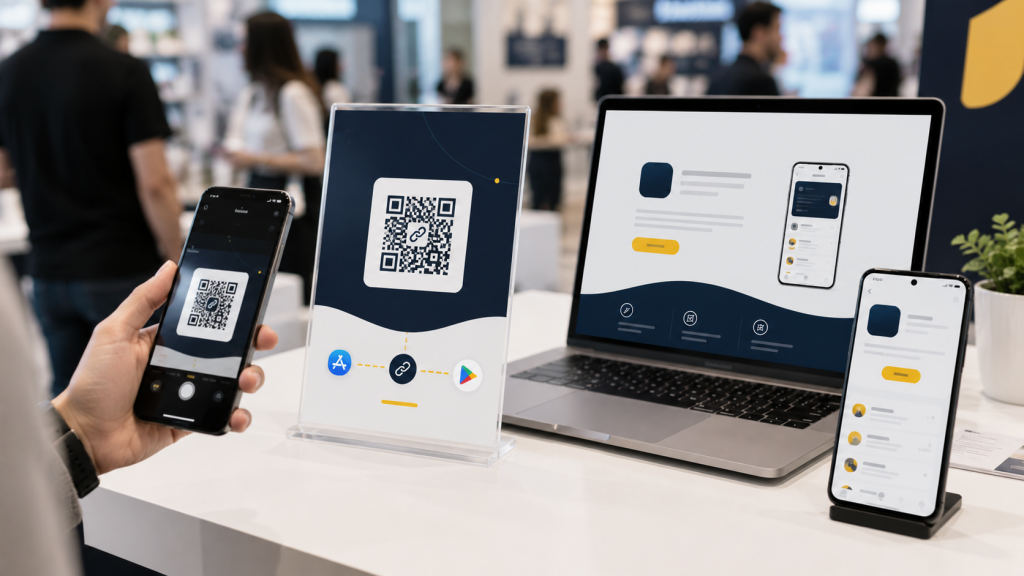
Desktop visitors should not be treated as failed mobile users. They may still be interested; they are just not on the device where they can install the app immediately. The best fallback is usually a simple app landing page. It can explain what the app does, show App Store and Google Play buttons, include a QR code, and give the visitor a reason to continue. If the app is new, the fallback page can also include screenshots, pricing, a waitlist, or a short product demo. Avoid sending desktop users directly to a mobile store page without context. It often feels awkward and gives you less control over what happens next.
Where One Link for App Store and Google Play Works Best
One link for app store and google play is most useful when you cannot predict the device behind the click. That includes almost every public marketing channel.
- Social Media Bios: Perfect for Instagram, TikTok, X, LinkedIn, and Facebook where character space is limited.
- Physical Marketing: QR codes on posters, flyers, packaging, booths, tables, and receipts.
- Paid Ad Campaigns: Ads that receive untargeted, mixed traffic from both iOS and Android users.
- Email Marketing: Newsletters and campaigns that are opened fluidly across phones, tablets, and desktops.
- Influencer Partnerships: Captions where a single, clean CTA performs better than a mess of multiple links.
- PR & Media: Blog posts, launch announcements, and press mentions.
- Customer Support: Quick replies where the team should not need to ask, “Are you on iPhone or Android?” before sending a link.
The more places your link appears, the more valuable a single routing link becomes.
Common Mistakes That Quietly Reduce Downloads
The most common mistake is using a basic short link and assuming it solves the app store problem. Shortening a URL makes it look cleaner, but it does not automatically send iPhone and Android users to different places. Another mistake is only testing in Safari or Chrome. Many users open links inside Instagram, TikTok, Facebook, Gmail, Messenger, or Line. In-app browsers can behave differently, so your real campaign environment matters. Teams also forget about old placements. If a QR code is printed on a poster or packaging, the link needs to keep working long after the campaign is created. A good app download link should be easy to update without breaking the URL people already have.
The Easier Way Is to Avoid Building Routing Logic Yourself
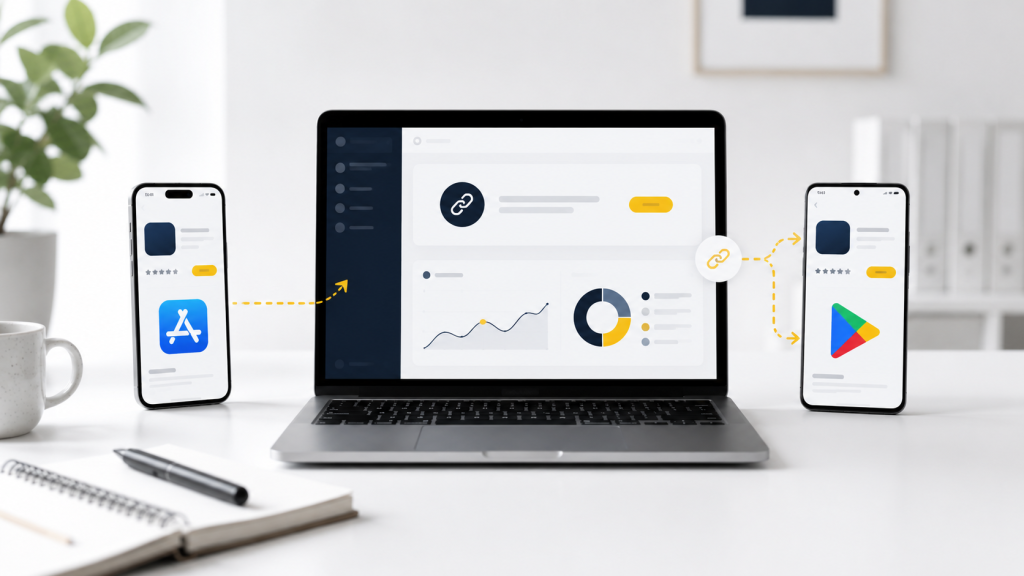
You can build this system yourself, but most small teams do not need to. Custom routing means detecting devices, handling fallbacks, testing edge cases, maintaining redirects, and updating destinations when store links change. That is time your team could spend on the app, the launch, or the campaign itself. Instead of building device-detection logic yourself, you can set this up with itlink.to One Route and use one clean app download link across your campaigns. Set the iOS destination, set the Android destination, add a desktop fallback, then test the final URL before publishing.
Create One Clean App Download Link Before Your Next Campaign
Creating one link for app store and google play is a small setup task that can make your app promotion feel much cleaner. It removes the need for two public links, reduces wrong clicks, and gives desktop visitors a better path. Before your next launch, ad campaign, QR code, or influencer post, create one app download link and test it from the places users will actually click. Check iPhone, Android, desktop, email, social apps, and QR scans. Create one app download link with itlink.to One Route so every campaign has one clear URL that is easier to share, easier to manage, and easier for users to click.